3. Umami on the VM
Analytics for the site, with the visitor data on your own disk.
3.0 Why
A published site raises an immediate question: is anyone reading it. The usual answer hands every visitor to an advertising company, which is why the consent banner exists. Umami is the self-hosted alternative: it counts page views without cookies and without personal data, and the database is on your machine.
Self-hosting analytics has a second, practical benefit. Blockers filter requests to the well-known analytics hostnames by list, so a share of your traffic never reports. A script served from your own hostname is not on those lists.
This chapter runs Umami and its Postgres database on the guest, on loopback, and stops there. It is not published yet, because publishing it correctly is a more interesting decision than it first looks, and chapter 4 is about that decision.
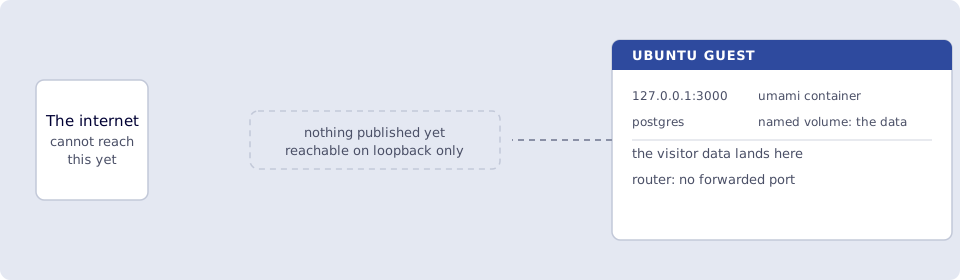
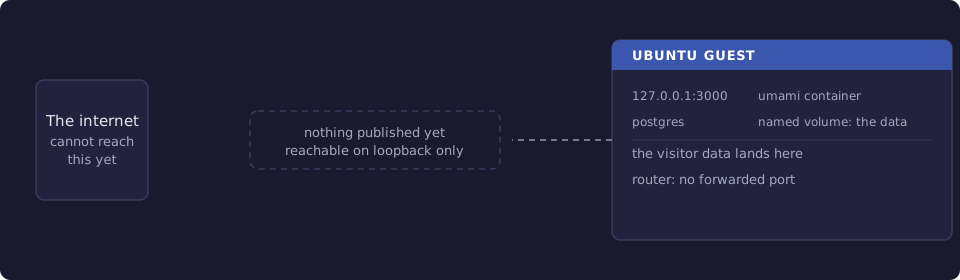
Where you run this: everything on the Ubuntu guest, except the Umami login, which is a browser on your laptop reaching the guest through an SSH tunnel.
3.1 The job
You run Umami and Postgres with Docker Compose, set a real application secret, log in, change the default password, and register your site to get a tracking ID.
Done when
docker compose -f ~/umami/docker-compose.yml psshowsumamianddbrunning and healthy.curl http://127.0.0.1:3000/api/heartbeatanswers, andssshows127.0.0.1:3000.APP_SECRETin~/umami/.envis a value you generated.- You have logged in and changed the default
adminpassword. - Umami lists your site, and you have copied its website ID.
- Port
3000is not forwarded on the router.
Need first: 2. Publish the site, so there is a public site worth measuring. Leave it and hello-world running. The guest wants 4 GB of memory once Postgres is in the mix.
Not this chapter: an Edgible app for Umami, the tracking snippet in your pages, or uptime monitoring. Chapter 4 does the first two.
3.2 Run Umami and Postgres
Umami needs a database, so this is two containers rather than one. On the guest:
mkdir -p ~/umami
cat > ~/umami/docker-compose.yml <<'YAML'
services:
  umami:
    image: ghcr.io/umami-software/umami:postgresql-latest
    container_name: umami
    restart: unless-stopped
    ports:
      - "127.0.0.1:3000:3000"
    environment:
      DATABASE_URL: postgresql://umami:${POSTGRES_PASSWORD}@db:5432/umami
      APP_SECRET: ${APP_SECRET}
    depends_on:
      db:
        condition: service_healthy
    healthcheck:
      test: ["CMD-SHELL", "curl -f http://localhost:3000/api/heartbeat || exit 1"]
      interval: 10s
      timeout: 5s
      retries: 5
  db:
    image: postgres:15-alpine
    container_name: umami-db
    restart: unless-stopped
    environment:
      POSTGRES_DB: umami
      POSTGRES_USER: umami
      POSTGRES_PASSWORD: ${POSTGRES_PASSWORD}
    volumes:
      - umami-db-data:/var/lib/postgresql/data
    healthcheck:
      test: ["CMD-SHELL", "pg_isready -U umami -d umami"]
      interval: 10s
      timeout: 5s
      retries: 5
volumes:
  umami-db-data:
YAML
Both secrets come from a .env file beside it, generated rather than chosen:
cat > ~/umami/.env <<EOF
POSTGRES_PASSWORD=$(openssl rand -hex 16)
APP_SECRET=$(openssl rand -base64 32)
EOF
chmod 600 ~/umami/.env
APP_SECRET signs the session tokens. The upstream example file ships a placeholder, and leaving it means anyone who knows that placeholder, which is everyone, can mint a session for your dashboard. It is one command to avoid, and changing it later logs everyone out.
Start it:
cd ~/umami && docker compose up -d
docker compose ps
The first start runs the database migrations, so umami may sit unhealthy for 30 seconds or so before it settles. docker compose logs -f umami shows the progress.
Smoke test. On the guest:
curl -s http://127.0.0.1:3000/api/heartbeat
ss -ltnp | grep 3000
The heartbeat answers, and the port is on 127.0.0.1:3000. As with the site, the 127.0.0.1: prefix in the compose file is what keeps it off the rest of your network, and it matters more here: this is an admin interface with a default password on it until the next step.
3.3 Log in and change the password
Umami ships with admin / umami, so this is the first thing to do, before it is reachable from anywhere but this machine.
Umami is a web interface and the guest is Ubuntu Server, with no browser on it. Carry the port to a machine that has one, over the host 2222 to guest 22 forward from Start here, 1.5. From your laptop:
ssh -p 2222 -L 3000:127.0.0.1:3000 ubuntu@127.0.0.1
Leave that session open and, on the laptop, open http://127.0.0.1:3000. The tunnel carries it to the guest. Close the session when you are done, and the port goes with it.
If your guest does have a desktop, opening http://127.0.0.1:3000 on it works just as well and needs no tunnel.
- Sign in as
adminwith passwordumami. - Open Settings, then Profile, then Change password.
- Set something you have stored in a password manager.
That the login page was never reachable from outside this machine is not a reason to skip this. Chapter 4 publishes this process, and it is easier to change the password now than to remember to do it in the window between publishing and being found.
3.4 Add your site and copy the tracking ID
- In Umami, open Settings, then Websites, then Add website.
- Name it whatever you like. For Domain, use the hostname from chapter 2:
site.<org>.edgible.com. - Save, then open the site's Edit or Tracking code view.
You want two things from that screen: the website ID, a UUID, and the shape of the snippet, which looks like this:
<script defer src="https://<umami-host>/script.js" data-website-id="<your-website-id>"></script>
Copy the website ID somewhere. Do not paste the snippet into your site yet: the src on that screen points at whatever host you are viewing Umami on, which right now is 127.0.0.1, and a visitor's browser cannot fetch that. Chapter 4 publishes a hostname that works and then adds the snippet.
Verify
-
docker compose -f ~/umami/docker-compose.yml psshowsumamianddbrunning and healthy. -
curl http://127.0.0.1:3000/api/heartbeatanswers, andss -ltnp | grep 3000shows127.0.0.1:3000. -
grep APP_SECRET ~/umami/.envshows the value you generated, not an empty or default one. - You can sign in with your new password, and
admin/umamino longer works. - Umami lists your site, and you have its website ID.
- Port
3000is not forwarded on the router.
Next
4. Publish Umami puts this on two hostnames with two different auth modes, which is the only way the tracking script and the dashboard can both be correct. Series: README.